

The Gravity Forms Stripe Addon is a complete solution for accepting payments directly through your WordPress forms. It seamlessly connects your site with Stripe, one of the most reliable and secure payment gateways in the world. If you are selling products, collecting donations, or running recurring subscriptions, this addon makes the process effortless giving you secure, flexible and fully automated payment handling right inside your Gravity Forms dashboard.
Pre Requisites
-
A Verified Stripe Account – Sign up at stripe.com and complete the quick onboarding process.
-
A Secure (HTTPS) Website – Stripe only works on SSL secured pages to ensure data safety.
-
A Supported Form Builder – Such as Gravity Forms, WPForms, or any platform that supports Stripe Addon.
-
Admin Access – To install and configure plugins or integrations.
-
(Optional) Basic API Knowledge – Helps if you plan to extend or automate advanced processes later.

Connect and Configure Stripe
Connecting Stripe to your site is quick, secure and straightforward.
Step 1: Install the Stripe Addon
Navigate to your site’s plugin or extension library and install the Stripe Addon. Once installed, activate it.
Step 2: Connect Your Account
Click Connect with Stripe, sign in to your account, and authorize the connection. This securely links your website to your Stripe dashboard.
Step 3: Enter API Keys
Alternatively, you can manually enter your Publishable Key and Secret Key from the Stripe Dashboard under Developers → API Keys.
Step 4: Choose Mode
Start in Test Mode to safely run transactions using test card numbers. Once verified, switch to Live Mode for real payments.
Step 5: Configure Currency
Select your preferred currency and ensure your locale matches your business region.
Build Your Payment Form
Your payment form is the face of your checkout process make it intuitive, elegant, and trustworthy.
Recommended Fields
-
Full Name
-
Email Address
-
Payment Amount
-
Card Details (Stripe Field)
-
Optional Product or Plan Selector
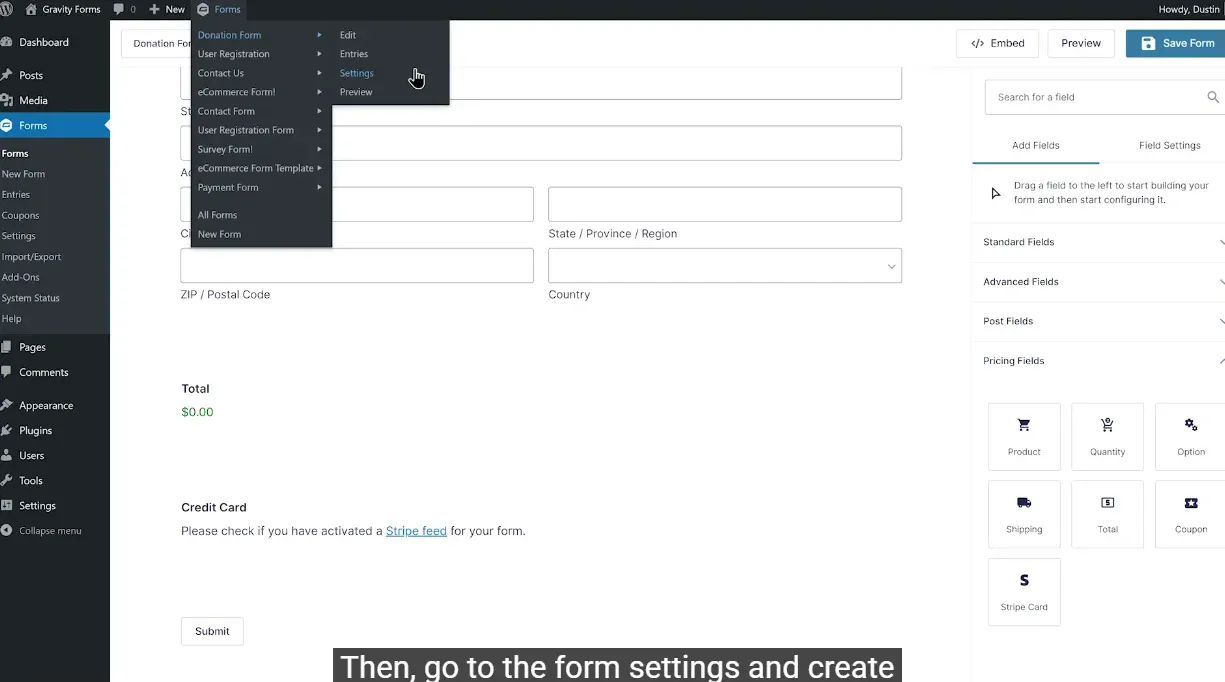
Configure Stripe Feeds
Stripe Feeds define how form submissions are processed as payments.
How to Set Up a Feed:
-
Go to Form Settings → Stripe Feeds.
-
Click Add New Feed.
-
Choose Transaction Type:
-
One Time Payment
-
Subscription (Recurring)
-
-
Map your form fields to Stripe fields (Name, Email, Amount).
-
Add Conditional Logic (optional) to process only certain entries.
-
Save your feed and run a test transaction.
Track and Manage Sales
Stay informed about your performance with real time transaction insights.
Where to View Results
-
Form Dashboard: See individual entries, payment status, and customer info.
-
Stripe Dashboard: Dive deeper with full transaction history, refunds, analytics, and payout reports.
-
Exports & Reports: Download CSV files or connect with your accounting tools for financial tracking.
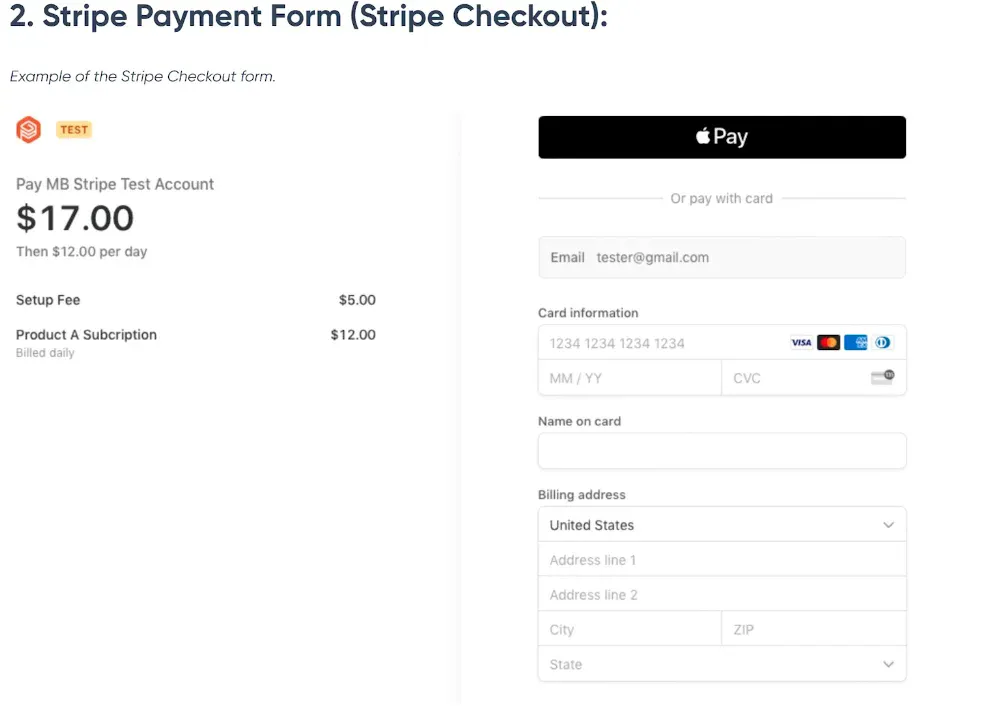
Flexible Payment Options
Stripe supports a wide range of payment methods designed to fit your business model.
| Method | Ideal For | Description |
|---|---|---|
| One Time Payments | Products, Donations | Simple and instant payments for single transactions. |
| Subscriptions | Memberships, SaaS | Automatically charge customers on a recurring basis. |
| Payment Intents API | Complex flows | Handles advanced authentication like 3D Secure. |
| Manual Invoicing | B2B or Offline | Create and send custom invoices directly through Stripe. |
Managing Subscriptions & Cancellations
Transparency is key when it comes to recurring payments. Stripe makes it easy to manage subscriptions without confusing your customers.
Cancellation Methods:
-
Customer Self Service: Let users cancel via your website or portal.
-
Admin Dashboard: Cancel subscriptions directly from your Stripe account.
-
Automated Webhooks: Automatically update your website when a subscription ends or renews.

Customize with Stripe Hooks
Take control of your Stripe integration with powerful developer hooks. These let you extend functionality or trigger custom actions at specific points in the payment process.
| Hook Name | Description |
|---|---|
gform_stripe_before_charge |
Modify data before a payment is processed. |
gform_stripe_after_charge |
Trigger actions after a successful payment (e.g., send a receipt). |
gform_stripe_customer_created |
Run logic when a new Stripe customer is created. |
These hooks give you the freedom to tailor your payment flow to your exact needs.
Addon Framework Hooks
Go beyond payments extend your form builder’s core behavior with global Addon framework hooks.
Popular Framework Hooks:
-
Action Hooks: Run custom functions when forms are submitted.
-
Filter Hooks: Adjust data before it’s saved or displayed.
-
Debug Hooks: Track logs for troubleshooting and optimization.
Conclusion
By integrating Stripe, you are not just adding a payment button you are unlocking a complete commerce solution. From one time sales to complex subscriptions, every transaction flows seamlessly through your site, giving customers confidence and giving you control.
Related products





 Gravity Forms Stripe Addon
8,00 $
You may add any content here from XStore Control Panel->Sales booster->Request a quote->Ask a question notification
At sem a enim eu vulputate nullam convallis Iaculis vitae odio faucibus adipiscing urna.
Reviews
There are no reviews yet.