
You probably collect data on forms on your WordPress site, whether for event registration, surveys, job applications, or giveaways. In these situations, there is no need to cap your forms. Perhaps, however, some situations call for moderated, balanced, and fair submissions.
This wonderfully handy add-on from the Gravity Perks suite allows you to specify the exact number of submissions a form can accept, who is eligible to submit, and for what duration. And the best part is that you can control form submissions without any manual effort or custom code.
Enabling Limit Submissions
After installing the GP Limit Submissions perk, you will be ready to set up your first Limit Feed. Think of a Limit Feed as a smart set of rules that tells your form when to stop accepting new submissions and who those rules apply to.
-
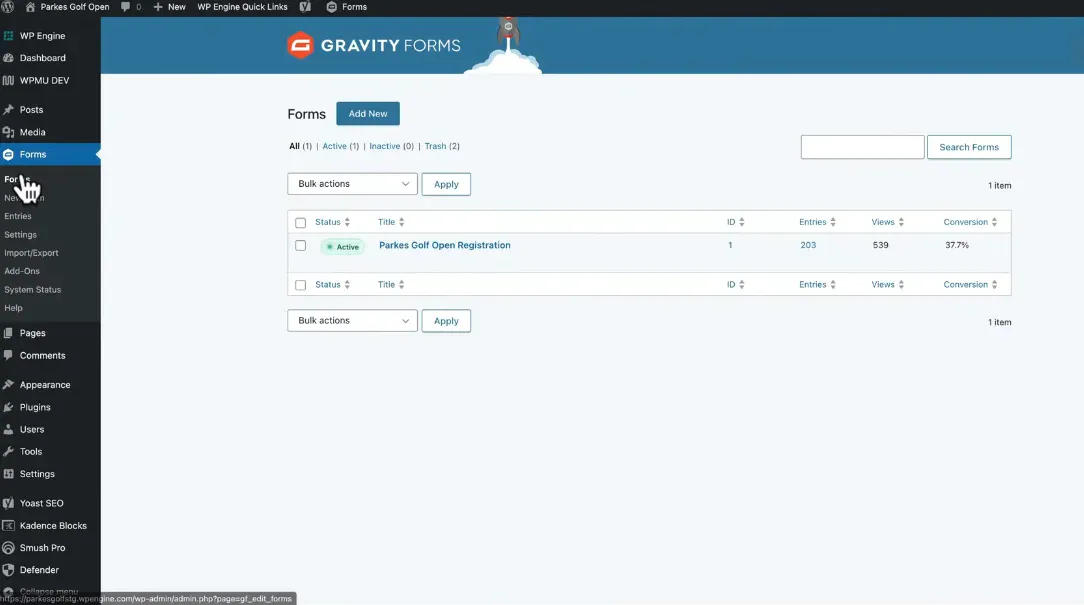
Go to your desired form inside the Gravity Forms Editor.
-
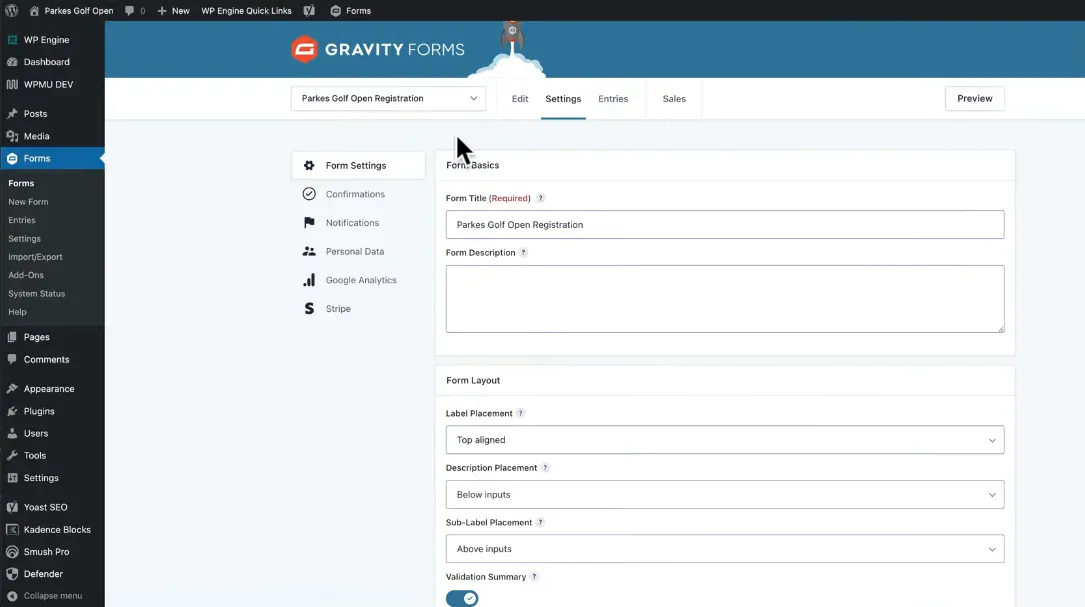
In the top toolbar, open the Settings dropdown and click Limit Submissions.
-
Click the Add New button to create your first Limit Feed.
-
Configure your rules decide who’s limited, how many times, and for how long.
-
Save your settings and your form now automatically manages its submission limits!
Understanding Limit Feeds
-
Who the limit applies to (for example, by user, role, or IP).
-
How many submissions are allowed.
-
How long the limitation lasts (a day, a week, a month, or forever).
Limit Feed Settings (Step by Step Guide)
Each Limit Feed includes several options to help you fine tune your submission control.
Feed Name
Give your feed a meaningful name. This helps you quickly identify its purpose in your feed list.
Submission Limit
Set how many entries users can submit before the form stops accepting new ones.
Time Period
This determines how long the limitation applies. You can choose from several modes
-
Forever: The limit counts all existing entries indefinitely.
-
Time Period: Define a rolling time frame for example, every 24 hours, 7 days, or 1 month.
-
Calendar Period: Automatically reset limits daily, weekly, monthly, or yearly.
-
Form Schedule: Use the form’s built-in schedule (set on the Form Settings page) to align your limits with your form’s active period.
Limit Message
When a user reaches the limit, this message appears. You can customize it with friendly or branded text, such as “Sorry, this form is no longer accepting entries.”
Rules & Rule Groups
Each group of rules works together all must be true for the group to apply. You can add multiple rule groups to give yourself ultimate flexibility. If any group matches, the limit will be enforced.
Different Types of Limit Rules
With Gravity Forms Limit Submissions, you can control submissions using a wide variety of rule types making it one of the most flexible systems available for WordPress.
1. IP Address
Limit submissions by a user’s IP address.
Perfect for anonymous visitors or preventing spammy re submissions.
-
Each IP: Every unique IP gets its own limit.
-
Specific IP: Apply the rule to a particular IP address only.
2. WordPress User
If your users log in, you can apply submission limits per account.
-
Each User: Every user gets their own submission count.
-
Specific User: Choose a particular user from a dropdown list (up to 1,000 users supported).
3. Embed URL
Limit based on where the form appears. This is useful if you use the same form across different pages.
-
Each URL: Every page gets its own limit.
-
All URLs: Limit applies across the entire website.
-
Specific URL / Page: Apply a limit to a single page or post.
4. User Role
Limit based on the user’s WordPress role such as Administrator, Subscriber, or Editor.
You can even target anonymous users with a custom filter.
5. Field Value
This is where things get really flexible. You can set limits based on the actual content users enter into your form fields.
-
Single Field: Limit based on one field’s value, such as an email address or coupon code.
-
Multiple Fields: Combine several fields to create unique rules (for example, “User + Event Name”).
Shortcodes to Display Submission Data
You can use shortcodes to show users their submission status directly on your website. This makes your form experience interactive and transparent.
Options
-
form: (Required) The form’s ID.
-
action: (Optional) Choose “remaining,” “count,” or “limit.”
-
feed: (Optional) Target a specific Limit Feed by its ID.
Notifications When a Limit Is Reached
When a submission limit is reached, GP Limit Submissions can automatically trigger notifications.
You can send emails to
-
Site administrators
-
The user who tried to submit the form
-
Or multiple recipients at once
Advanced Customization with Snippets
Want to go beyond standard settings The plugin supports a wide range of PHP snippets that let you extend its functionality.
-
Limit submissions based on entry meta data.
-
Disable limits for certain logged-in users.
-
Dynamically change limits based on user meta fields.
-
Customize “limit reached” messages per form.
-
Evaluate conditional logic as soon as a form loads.
-
Group multiple forms under a shared submission limit.
Troubleshooting Common Issues
If your limits are not behaving as expected, try these steps
-
Check Feed Order:
The plugin processes feeds from top to bottom. The first feed that meets the condition will be used. -
Disable Caching Temporarily:
Cached pages can sometimes cause delays in limit updates. You can also use the free Cache Buster plugin to fix this. -
Verify User Role Permissions:
If you can ot see plugin settings, ensure your account or membership plugin is not restricting access.
Developer Hooks and Filters
-
gpls_apply_limit_per_form — Decide if limits apply per form or across multiple forms.
-
gpls_apply_role_limit_per_user — Control whether role-based limits are per user or shared.
-
gpls_before_query — Adjust queries before they are executed.
-
gpls_calendar_periods — Add custom calendar periods (for example, billing cycles).
-
gpls_bypass_gravityview — Choose if rules should be skipped when using GravityView.
Frequently Asked Questions
Can I apply the same Limit Feed to all forms?
Yes with a simple snippet, you can make one feed apply across all your forms.
Can I apply a limit to a specific group of forms?
Definitely! You can group certain forms together and apply one shared limit among them.
Are limits enforced when editing form entries?
No, limits apply only when new entries are submitted not when existing ones are edited.
What’s the difference between GP Limit Submissions and GP Inventory?
-
Limit Submissions controls how many total entries can be submitted to a form.
-
GP Inventory limits how many times a specific choice or product option can be selected.
For example
-
Use Limit Submissions for contests or registration forms.
-
Use GP Inventory for selling tickets or limited stock products.
Related products





 Gravity Forms Limit Submission...
8,00 $
You may add any content here from XStore Control Panel->Sales booster->Request a quote->Ask a question notification
At sem a enim eu vulputate nullam convallis Iaculis vitae odio faucibus adipiscing urna.
Reviews
There are no reviews yet.